Online Data Storage Backup

Online Storage of files is a service to let users keep their files safe on server for sharing, storing and backup purposes. Due to hard disk limitations & many other reasons we need such kind of services to make the scope larger one.Via these services Online backup services also available which help in any kind of data loss offline. Many organizations are regularly doing it for their entire network like as banks, MNC’s etc.

To use the service one should have get permission with server owner. There are servers who offering free registrations service also for this. But they have limits on data uses or free trial for limited time. Its very easy to do task these days with single click download and upload service for anybody.

List of Online Data Storage and Backup providers:-

  1. Diino
  2. Elephant Drive
  3. Amazon Simple Storage
  4. Zmanda Cloud Backup
  5. Rackspace online storage
  6. Mozy
  7. Drive HQ
  8. Box.net
  9. Drop Box
  10. Bullguard Backup
  11. Drop Send
  12. Esnips
  13. Humyo
  14. Carbonite
  15. Windows Azure Storage
  16. Data Protection
  17. nirvanix Enterprises Cloud Storage
  18. Backblaze Business
  19. Cloudlayer Storage
  20. DynaVol


Benefits of Online Data storage/ Backup services:-

  1. Store Your files online at low cost or free
  2. Share your online files with your network easily
  3. Backup your online files easily to offline if you had missed them.
  4. You can store softwares which is shareware, freeware or open source kind for entire network to use from one source.
  5. Personal file sharing for your own network. You can share personal files with your network easily from your own desktop.
  6. Easy to upload/ Download service. Single click download / upload services from your own desktop make it more beneficiary.
  7. With some good providers you will get High End security on your data files.


Risks in Online Data storage & backup

Online data storage & backup services is having many benefits as told above but in current time it has some risk. Which are as below:-

  1. Copyright Issues
  2. Online Data Protection & safety concerns
  3. Privacy issues
  4. Cyber Crimes
  5. Data Transfer takes time & need high speed internet connection
  6. May be risky if not well encrypted.


Still online data storage & backup service is most useful for many persons. People have option to store, share & backup their data from one source at anytime. And its better thing for the online world.

share save 171 16 How You can use Online Data Storage backup, DiskSpace, File Sharing ?
 
facebook

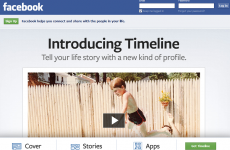
Facebook recently launched new Timeline feature for all Facebook users. This feature is really great for facebook users. This new Timeline interface actually replaces the current information format that is bulleted and the visible postings that are limited with more details about the users and their entire history in Facebook profile.

The main thing behind the launch of Facebook Timeline service is to recollect back the memories and to decorate them. Previously, the Facebook page had the most recent posts with the photos that are posted by others. Now with timeline, it creates a scrapbook like montage, photos, link, updates and more right from the time they signed in with the account.

For enable Facebook Timeline go to www.facebook.com/about/timeline

Click Get App button below in page and your Timeline will be active.

facebook How to Enable Facebook Timeline feature

share save 171 16 How to Enable Facebook Timeline feature
 
Browse using Vtunnel.com

Generally all major social networking (Google News, Typepad, ebay, Blogger blogs, YouTube, Facebook, Bebo, Myspace, Orkut, MySpace, Bebo, Yahoo! Messenger, AOL AIM, Flickr etc. ) websites blocked on your workspace.

This article will tell you how to access websites restricted in your school, college, universities and offices. Internet access to specific website’s blocked for stopping time waste or stop illegal content showing websites.

So you are at work or school and you want access blocked website using your organization internet below are different ways for Browse blocked web site:-

  • To access blocked website, type the IP number instead of the URL in the browser address bar. However, if your blocking software maps the IP address to the web server , the website will still remain blocked.
  • Anonymous Surfing – Browse the internet via free proxy server. A proxy server (or proxies) is a normal computer that hides the identity of computers on its network from the Internet. Bypass Firewalls using Proxies. Use web based proxy websites, there are thousands of proxy websites like hidemyass.com,  vtunnel.com these proxy sites bypass internet without any software or configuration just open web based proxy and start surfing internet. Below is vtunnel.com spanshot for browsing websites.

    vtunnel How To Browse Blocked Web Sites

    Browse using Vtunnel.com

  • Use a URL redirection service like tinyurl.com or snipurl.com. These domain forwarding services sometimes work as the address in the the url box remain the redirect url and do not change to the banned site.
  • The  XeroBank’s  internet privacy software suite gives you the tools to anonymously access the internet. The XeroBank Installer includes xB Browser, xB Mail, and xB VPN. Interet privacy software evades tracking, logging, cookies, spyware, and does not leave personally identifiable information. Get xB Browser…..
    xerobank1 How To Browse Blocked Web Sites
  • Use Google Mobile Search – Google display the normal HTML pages as if you are viewing them on a mobile phone. During the translation, Google removes the javascript content and CSS scripts and breaks a longer page into several smaller pages. Google Mobile

The best option for Anonymous or easy surfing is using proxy websites like vtunnel.com hidemyass.com, this takes very low time for start accessing internet.

share save 171 16 How To Browse Blocked Web Sites
 
Internet Explorer private Browsing

Private Browsing

As you browse the web, WebBrowser remembers a lot of information as sites you’ve visited, files you have downloaded, and many more. There may be times, however, when you don’t want other users on your computer to see this information, such as when you want to shop birthday Present Or Watch other Adult Content.

Private Browsing allows users to browse the Internet without saving any information about which sites and pages you’ve visited. This Blog Post explains you what information is not saved when in Private Browsing and will tell you step-by-step instructions for using different browsers in Private mode.

Firefox Private Browsing Mode

See below in image how to start private browsing in firefox 9.0.1, it may be different in older and newer versions of firefox.
Firefox private browsing 1024x501 How to Start Private Browsing in IE, Firefox, Safari, Chrome

Click on Firefox button in left side then you will get option start private browsing, when you choose private browsing your current firefox will save all open tabs. If you want stop private browsing then again click on firefox button in left side on top, you will get “stop Private browsing” button. After click on “stop private browsing” all open tabs will be closed and your private browsing data will be deleted from history and Normal browsing tabs will be restored.

Warning: Private Browsing in firefox doesn’t make you anonymous on the Internet. Your Internet service provider, employer, or the sites themselves can still track what pages you visit. Private Browsing also doesn’t protect you from keyloggers or spyware that may be installed on your computer.

Internet Explorer Private Browsing Mode

Windows Internet Explorer private mode is really too easy as it is in Firefox.
See Below image for Starting Private Browsing:-

Ie private browsing How to Start Private Browsing in IE, Firefox, Safari, Chrome

Internet Explorer private Browsing

1. Click on Saftey
2. Click on InPrivate Brwosing item on the Menu.
OR
Just use the Ctrl+Shift+P shortcut key to Start Private Browsing

Safari Private Browsing Mode
In safari click on Safari in menu then click on Private Browsing.

private browsing safari How to Start Private Browsing in IE, Firefox, Safari, Chrome

private browsing in safari

Google Chrome Private Browsing Mode

Opening a private in Google Chrome is too easy, you can either use the shortcut key Ctrl + Shift + N or choose the Open New incognito window from the menu.

This tutorial will help you in private browsing in all major browsers being used today mostly.

share save 171 16 How to Start Private Browsing in IE, Firefox, Safari, Chrome
 
google analytics

Install Google Analytics in WordPress easily :-

Oh!! It was time when we started blogging online for first time, We choose wordpress as blogging software the most problem we faced was how to track my traffic, visitors, revenue, keywords, visitor locations and most performing keywords in major search engine google. After a long search we found google analytics best visitor tracking software. Great site statistics is probably the single most important success factor of any website. The best way to know your audience is through your traffic stats and this is what Google Analytics provide for FREE. In this article, we will share why Google Analytics is important, and how you can install Google Analytics in your WordPress blog.
Here is simple process for,How to install Google Analytics in WordPress:-

Go to WP Admin panel → Plugins→ Add new plugin then type “google analytics” in search box and search, Choose install “google analytics” plugin from search results Then it will ask for Activate plugin, Activate plugin.

wp admin install google analytics code wordpress 300x168 How to Install Google Analytics in WordPress

Installed View of "google Analytics" plugin

Create Google Analytics account from www.google.com/analytics/

If you Already have google Analytics account then login to google analytics.

Next you need to click “add website profile” to your Google Analytics account, enter your website URL click finish, now you need to install tracking code to your your wordpress blog.
In wp-admin go to setting → Google Analytics

See Below images for Next:-

select copy code 300x168 How to Install Google Analytics in WordPress

Selecte Code then Copy

google analytics 300x168 How to Install Google Analytics in WordPress

Paste Copied Code from analytics

Click on save button in WordPress now Click save button in google analytics account. Now you are ready to track your site.

share save 171 16 How to Install Google Analytics in WordPress
All trademarks and copyrights on this page are owned by their respective owners, The rest copyright © 2012 NkJsKj.com The content is copyrighted and may not be reproduced on other websites. Privacy Policy Suffusion theme by Sayontan Sinha